How to convert MP4 to GIF
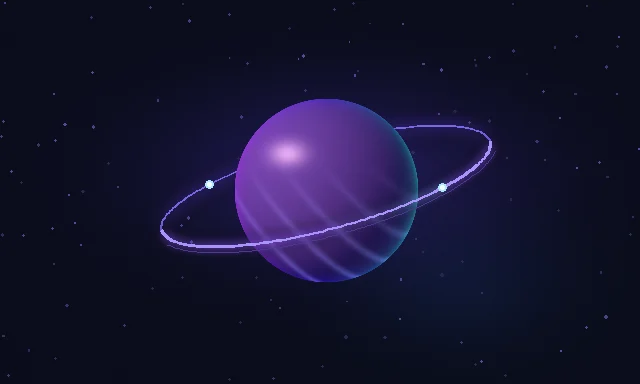
- Choose your video. Use an MP4 or WebM up to 50 MB. You can also choose Try sample to convert the four-second orbit clip.
- Set the segment. Enter a start time and a length from 0.2 to 6 seconds. For a 15-second recording, you could start at second 8 and export the next three seconds.
- Choose the output. Set the longest edge, frame rate, and loop. Click Make GIF, look at the preview, then select Download GIF.
The converter reads the video in your browser and saves a separate GIF. A video may be longer than six seconds because the limit applies to the selected clip. If you need the entire sequence, export several GIFs or use a video format for the full recording.
How to make a smaller GIF
Shorten the segment first. An extra second adds roughly eight frames at 8 fps or twelve frames at 12 fps. If the movement fits in two and a half seconds, trim still frames that appear before or after it.
Choose 320 px for small inline previews and the chat window. Use 480 px for most short help clips. Choose 640 px for a larger display when the source has enough detail. These settings specify the maximum longest edge and keep the original aspect ratio. A small source stays at its original size.
Use 8 fps for a file you want to send quickly. Try 12 fps if you need to show a quick cursor movement or rotating object. Choose Repeat to keep the output shorter. Bounce plays the middle frames backward too, which adds frames and can increase the file size. The preview shows the exact file size after encoding.
For example, to share a button click from a screen recording, start just before the click and include enough time for the new screen to appear. Try 480 px and 8 fps. Watch the download in your intended chat or document to see if the button label is readable at that size.
Choose a loop that fits the movement
Repeat works well when a movement naturally returns to its first pose. A wheel making one full turn is a good example. Pick a start frame and end the clip just before the same pose repeats. An extra hold at either end can make the loop appear to pause.
Bounce reverses the motion after the last frame and returns toward the start. It works well for objects bobbing or a hand moving side to side. For an action with an obvious direction, such as typing or opening a door, watch the backward part and choose the direction that tells the story best.
If you see a jump on each loop, move the start time a little and test the new seam. Use the built-in sample to compare Repeat and Bounce on the same clip. The light can continue around the ring or retrace its path depending on the loop setting.
Start with the right source
MP4 recorded with H.264 is a practical choice when different browsers need to read the file. WebM also works when the browser supports the codec in the file. A large phone video may need to be trimmed or saved as a smaller MP4 before opening it here. For a text idea or a photo you want to animate, go to the AI GIF Maker homepage.